 CADian
Support
As evidenced by over 30 years of development history, trust-worthy Korean CAD, CADian!

|
FAQ
·
2026.04.17
[ IMPORTANT ] Actions to Take if CADian Becomes Slow or Fails to Launch After Windows Update
|
|---|
|
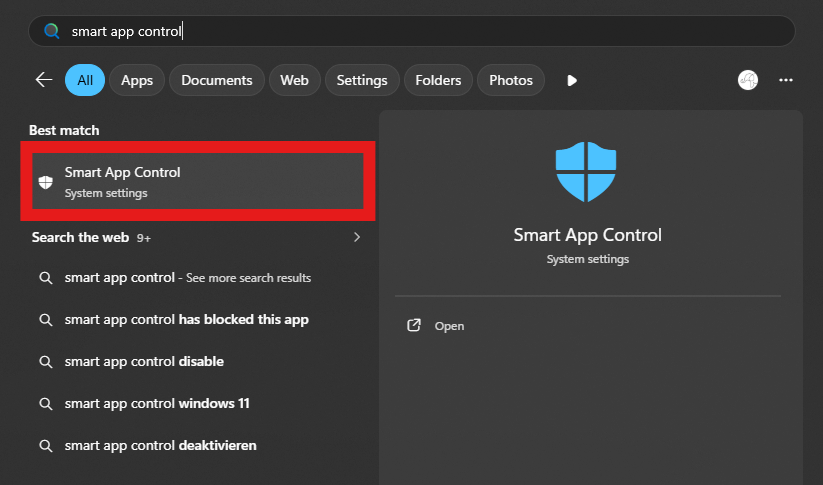
Hi, This is Wizcore/CADian. It has come to our attention that a number of errors have been reported after Windows 11 update. We would like to explain the causes and solutions for CADian being unresponsive or slow in launch after Windows 11 security update around Jan 20, 2026. Issue 1: CADian does not launch, or Error Status: 0xc0e90002 < Solution > 1. Run "Smart App Control"
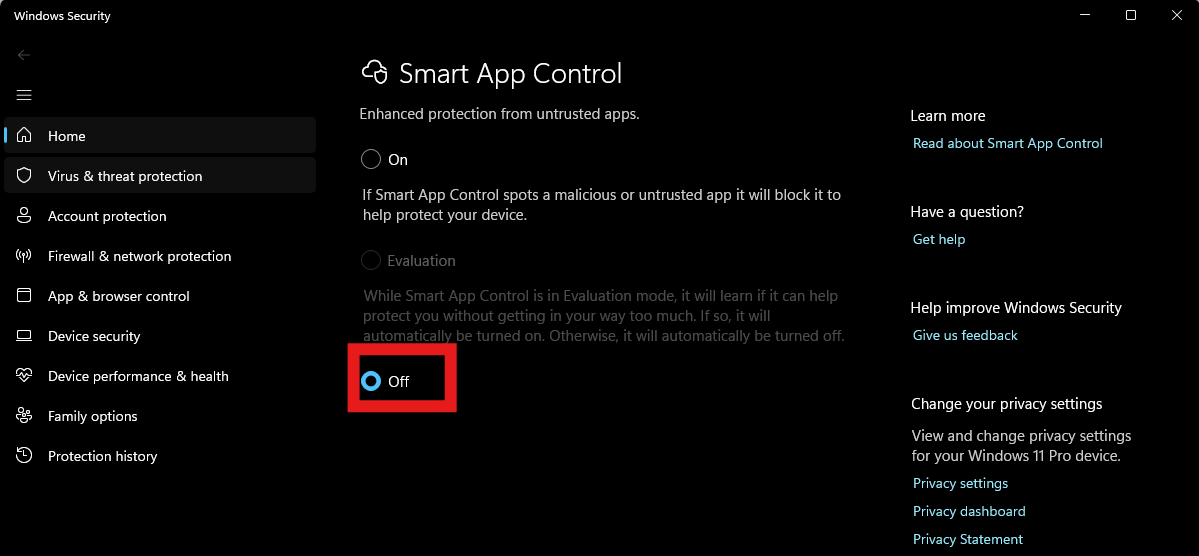
2. Set Smart App Control to “Off”.
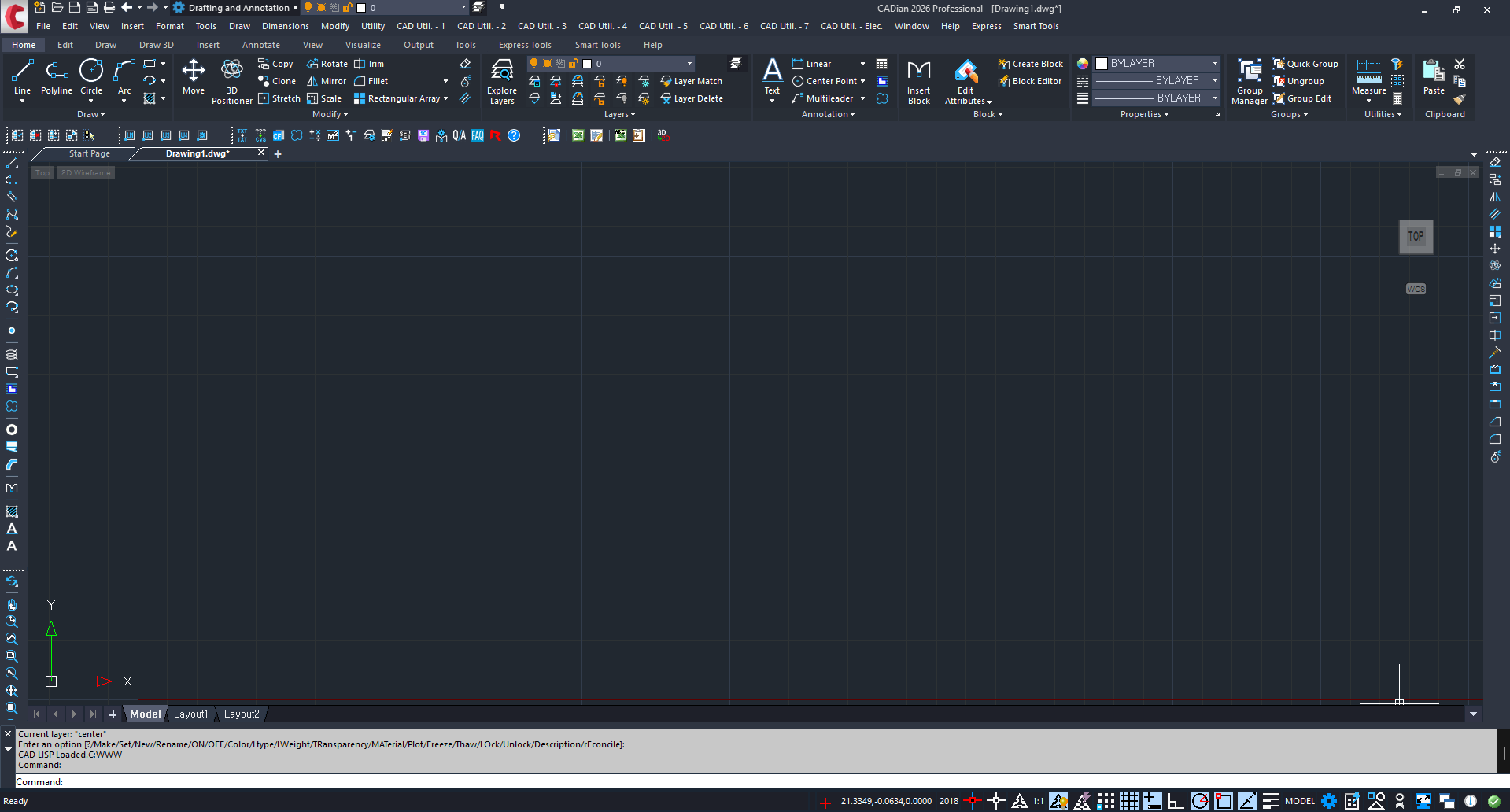
Issue 2: Sudden slowdown or lagging behavior < Cause > If your CADian is suddenly too slow, unusable, or lags in launch after around Jan 20, 2026, Windows 10 updates have now ended, In particular, Some of the updates that we have found to cause conflicts include For more details on update KB5074109, please refer to the article below: After this update, Microsoft has also identified issues with this update, To learn how to roll back the update: < Solution > The issue can be resolved by rolling back Windows Update 1. How to uninstall Windows update (KB5074109): 2. Update Graphic Card Driver to latest Version Issue 3: mfc140u.dll error If you encounter mfc140u.dll / MSVCP140.dll /VCRUNGTIME140.dll error, CADian : How to fix mfc140u.dll Error < Conclusion > Currently, it seems updating to Windows 11 has more downs than ups. CADian 2026 includes various new Smart Tools, Many new commands not available in other CAD software have also been introduced; we highly encourage you to upgrade & try out our CADian 2026 Explore the New Features of CAdian 2026 here In addition, CADian 2026 features a significantly improved UI,
For any inquires, please contact us as partner@cadian.com Thank you, Sincerely, Wizcore/CADian |



Address : 1009, 115, Gasan digital 2-ro, Geumcheon-gu, Seoul, Republic of Korea (08505)
CEO : Seung Hoon Park Business Registration Number : 105-81-74484
Sales : partner@cadian.com
Support : help@cadian.com
Tel : +82 2-323-0286
Fax : +82 2-2107-3286