 CADian
Support
As evidenced by over 30 years of development history, trust-worthy Korean CAD, CADian!

|
Utility Archive
·
2026.02.26
[Lisp #156] CUT1 : Trim & Clear Area
|
|---|
|
Hi, This is CADian. We have prepared 400+ Lisp programs to aid your CAD experience, free of charge! Full List of all CADian Lisps : [Full CADian Lisp List] How to Install : [CADian Lisps Download & Install Guide] ==================================================== 1/ Command :
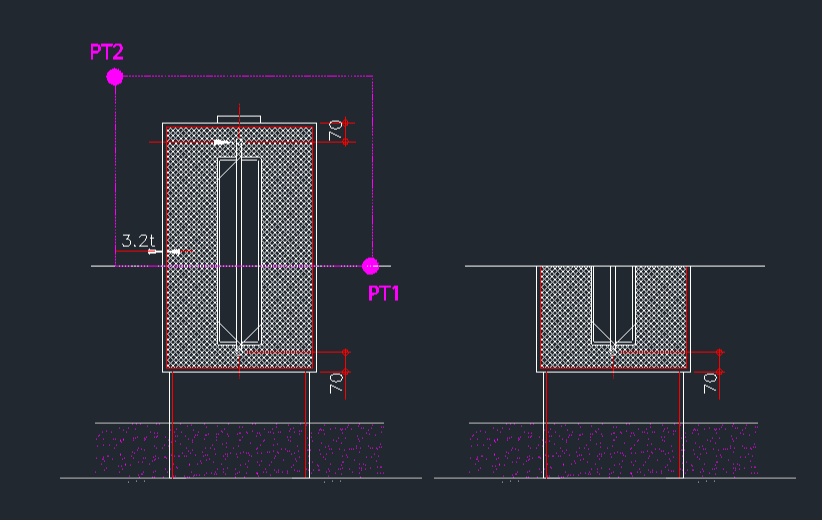
2/ Description : This tool is designed to delete or trim all objects within a specific boundary, solving issues where standard trim commands fail (especially with hatches).
3/ How to Use :
 |



Address : 1009, 115, Gasan digital 2-ro, Geumcheon-gu, Seoul, Republic of Korea (08505)
CEO : Seung Hoon Park Business Registration Number : 105-81-74484
Sales : partner@cadian.com
Support : help@cadian.com
Tel : +82 2-323-0286
Fax : +82 2-2107-3286